
This exercise asked me to create a book cover mock-up for a pre-existing book using either a new illustration or one that I have previously designed. I had to explore how to make a good mock-up, and ensure the book cover included any relevant information.
I have made mock-ups before, notably in the Abstract Illustration exercise. I struggled a little at the time as I do not use Photoshop, but instead Affinity Designer as I prefer to work on my iPad. I was unable to find a tutorial for how to use PSD mock-up files in Affinity, so ended up needing to use a free online software on my laptop. This was a hassle, so my goal in this exercise was to learn how to use Affinity for this task.
I decided to choose Harry Potter and the Philosophers Stone as my book. It is a classic, and I have read it several times, so I know the contents of the book well enough to easily design a book cover. I wanted a simplistic, dialed back, classic look for the cover, as I really wanted to focus on the mock-up part rather than illustrating something. The illustration process for the cover was fun regardless, though I was tapping in more to my graphic design skills than my illustration abilities.

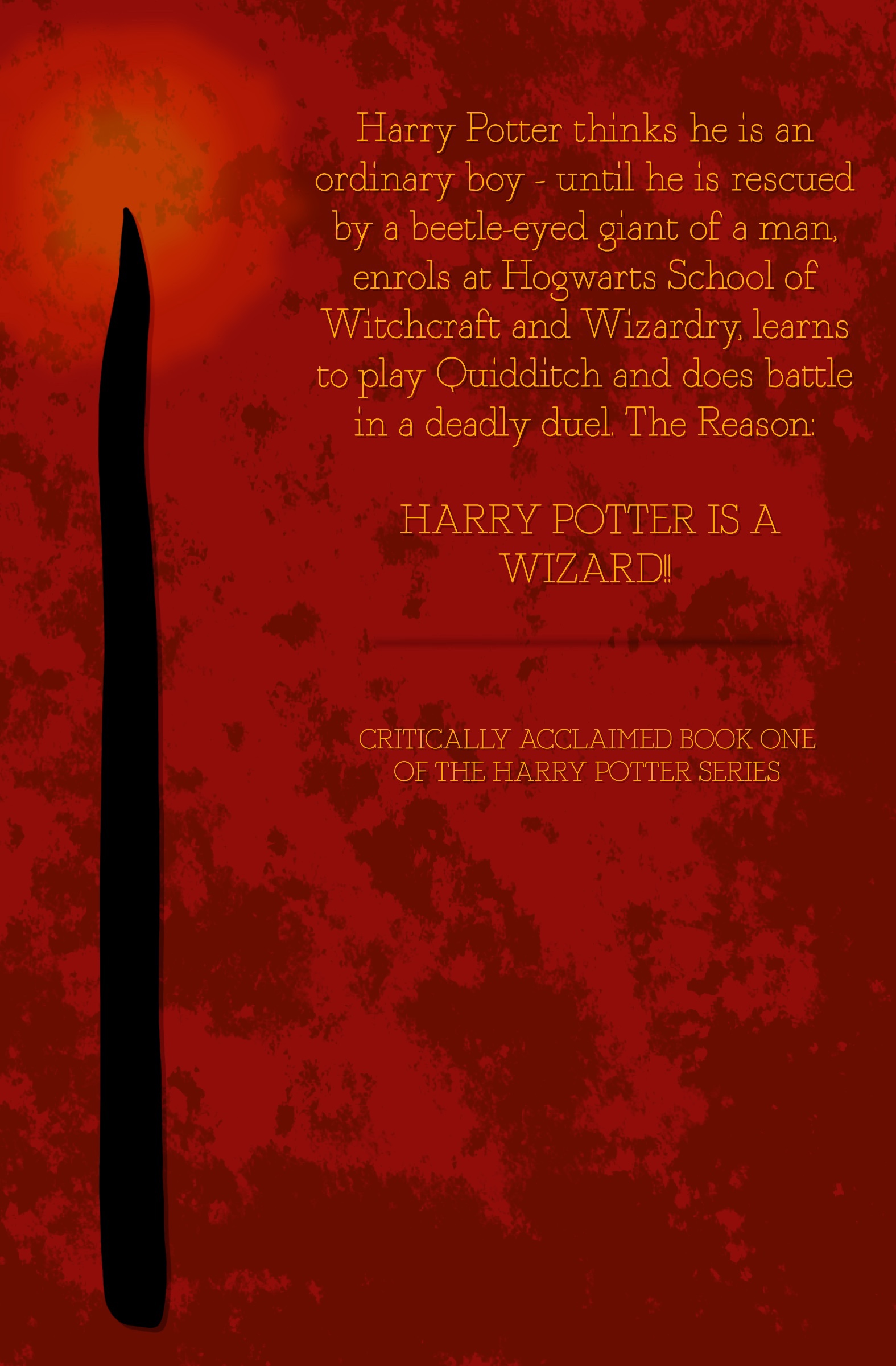
I created three panels in Procreate – one for the front, one for the back, and one for the spine. I opted for a deep red background all over with a mustardy gold as a secondary colour – signature colours for the Harry Potter series as it represents the ‘house colours’ for Gryffindor, the title characters’ school house. On the front cover I added a simple outline of the main character’s glasses and the scar he is most known for, as I feel this symbol is so highly recognisable almost everyone would know which book it is. I chose a classic typewriter font for the text as I felt it best complemented the designs. On the back cover I copied the blurb text from a copy I had to hand, and added the outline of a wand with a slight glow behind it. I left the spine plain bar the number ‘1’ – indicating that this is the first book in a series of seven – and the same outline of glasses.
Prior to designing the book cover I researched typical print sizes for covers to make sure any mock-up I tried to use wouldn’t be drastically different in shape and size. This made the mock-up creating process somewhat easier, but it was still complicated. I began looking online for some free pre-made mock-up files to work with. I found a file with multiple book mock-up options on mockup-design.com that had a royalty free license. I also, to my excitement, found a video tutorial on using PSD mock-up files in Affinity Designer. I watched the video and figured it would be incredibly easy to put together the final mock-up. I was sadly wrong.
I opened the first mock-up file in Affinity, hoping to have a layout of the front, back, and spine all together. I followed the instructions in the tutorial placing my image into the document where required. It was working well so far! However, the book cover I had designed was 2D, and a mock-up is created to look 3D. This meant some distortion was required on the book cover image in order to make it appear as if it was really a book lying there on a table. That’s easy enough, I’ve done it plenty of times before. Unfortunately, and to my despair, Affinity Designer lacks a distortion tool. I don’t understand the logic behind this, but I now had a huge hurdle to overcome.
Procreate does have a distortion tool, and I’m very familiar with using it. It has limited capabilities though as it is primarily meant as a pixel art tool. I figured I could open the file in Procreate, reshape the book cover images, move back into Affinity, then place the newly shaped images into the mock-up. Even this, however, had its difficulties. In order to achieve a perfect alignment, I needed my image layer to have low opacity. If I changed the opacity of the image after I had already started distorting it, the nodes would move and I wouldn’t be able to achieve such intricate movements. Some of the files were too large of a size for Procreate to handle, or had layers within that were incompatible with it’s capabilities.
After much trial and error (and frustration), my solution ended up being as follows:
- Open the mock-up file in Affinity Designer
- Save the file as a JPEG image
- Open the image in Procreate
- Open the book cover image in the same document
- Lower the layer opacity of the book cover image
- Distort the image to fit the mock-up book
- Restore the opacity to the image, and save as a PNG (making sure to remove the background)
- Open the mock-up in Affinity once again, and insert the distorted image
- Fit to the boundaries of the mock-up and save the completed image
This is a long-winded and slightly frustrating way to achieve a completed mock-up. But, it works! I wish Affinity Designer had a distortion tool as it would improve my life hugely in this regard. I might be able to find a quicker, easier solution to creating mock-ups, but for now this works fine even if it does take a little extra time. I was able to create two book cover mock-ups using this method and my illustrations, and I’m really impressed with them. Even if the cover is quite simple, I feel it is something I would actually see in a shop.
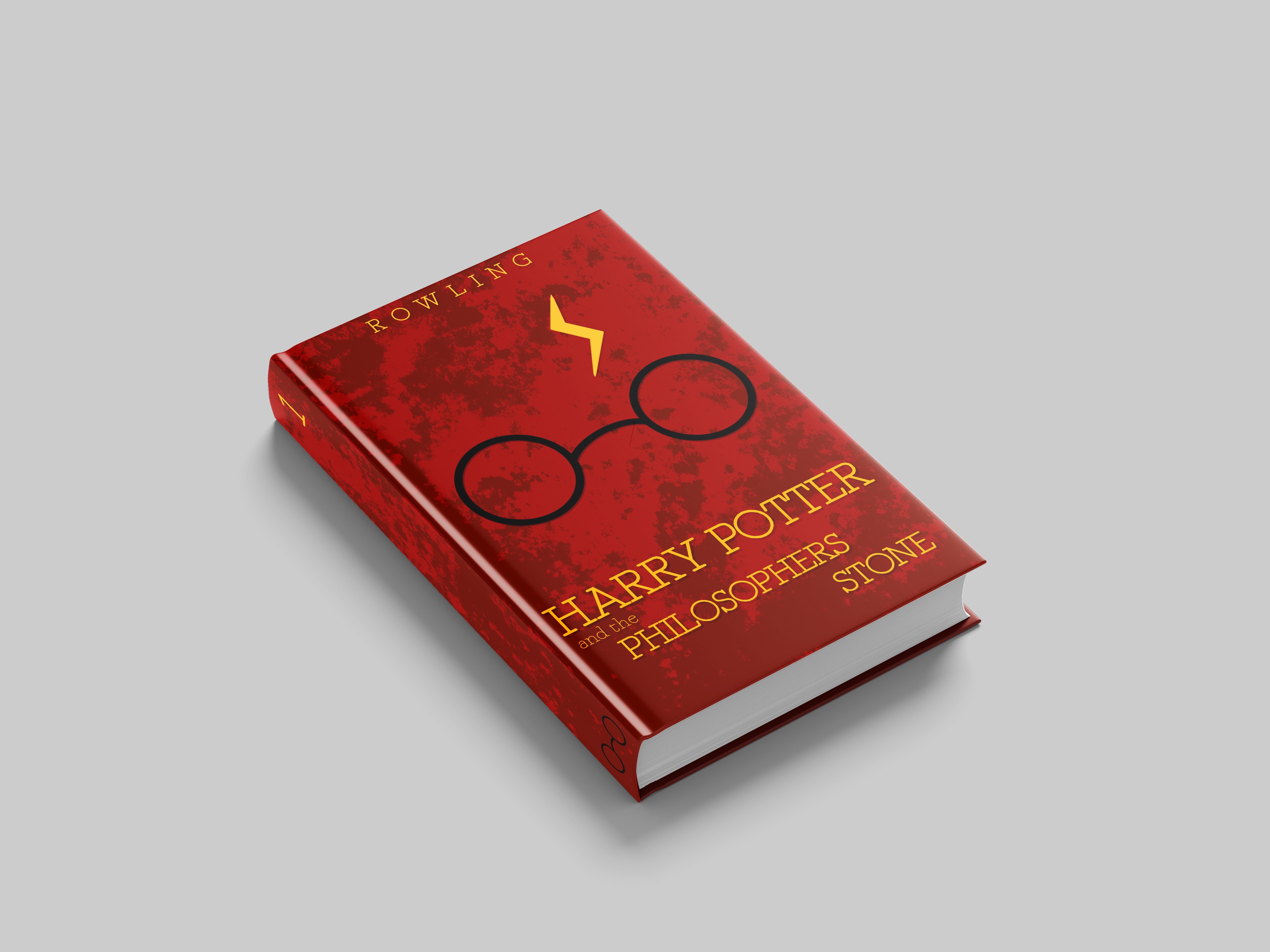

I am glad I achieved the goal I set out to in this exercise. I now have some way of creating mock-ups from my iPad, which does help in some regards. I can see how useful mock-ups are for designers to use when selling their work. Viewing your work in the context it is made for can help with making design choices and ensuring it looks how you envision it without going through the manufacturing process. I really enjoy being able to see my work in real world contexts and would like to include making mock-ups in my design process.


[…] I had to create a mock-up. I tried to use the same PSD mock-up file that I used in Exercise 21, but this proved to be difficult. The dimensions of the book jacket I had chosen were wildly […]
LikeLike